About Keyword Search
“Keyword Search” is a feature of modern browser that allows you to use a specific search engine (instead of your default search engine) by prefixing your search query with a “keyword”.
For example, when I type t XYZ-1234 in my address bar and hit enter, I get redirected to Ticket number “XYZ-1234” in Jira. Using w Something Something, I’ll search in Confluence directly.
Search configs for different tools:
| Service | URL |
|---|---|
| Confluence | https://mywiki.atlassian.net/wiki/search?text=%s |
| Jira | https://myjira.atlassian.net/jira/search?searchString=%s |
| Jira only Unresolved tickets | https://myjira.atlassian.net/jira/search?searchString=Unresolved%20%s |
| Jira direct JQL | https://myjira.atlassian.net/issues/?jql=%s |
Keyword Search Tips for Jira
If you have enabled the Smart search in Jira you could search in the address bar for stuff like:
t XYZ unresolved Incident whatever- t: keywoard for Ticket search
- XYZ: will extend search to project = XYZ
- unresolved: will extend search to resolution = unresolved
- Incident: will extend search to type = incident
- whatever: search text will be text ~ whatever
- and there are many more other options
How to configure Keyword Search
Chromium-based browsers (Chrome, Brave, …)
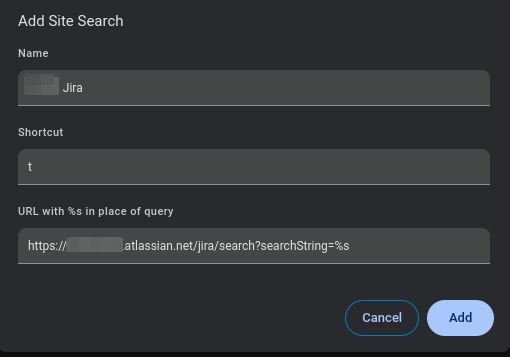
In the Settings go to “Search engine” → “Manage search engines and site search” (chrome://settings/searchEngines).
Under “Site Search” you can add custom search engines. “Shortcut” is the keyword you want to use:
Firefox
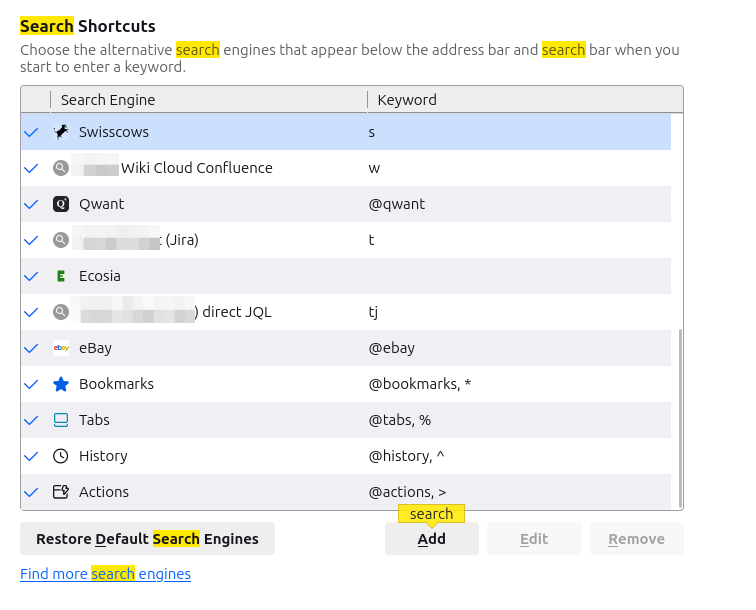
You can add it in search at the settings: